Wiring
Wires carry the electrical connections between component pins. Connections are purely geometric: anything that touches the same point is on the same net, so you never declare connections explicitly — you simply draw.
Drawing a wire
Choose (shortcut W).
Click the starting point (usually a pin).
Click each corner; the wire routes in right-angle (Manhattan) segments.
Click the end point. Right-click (or press Esc) to finish.
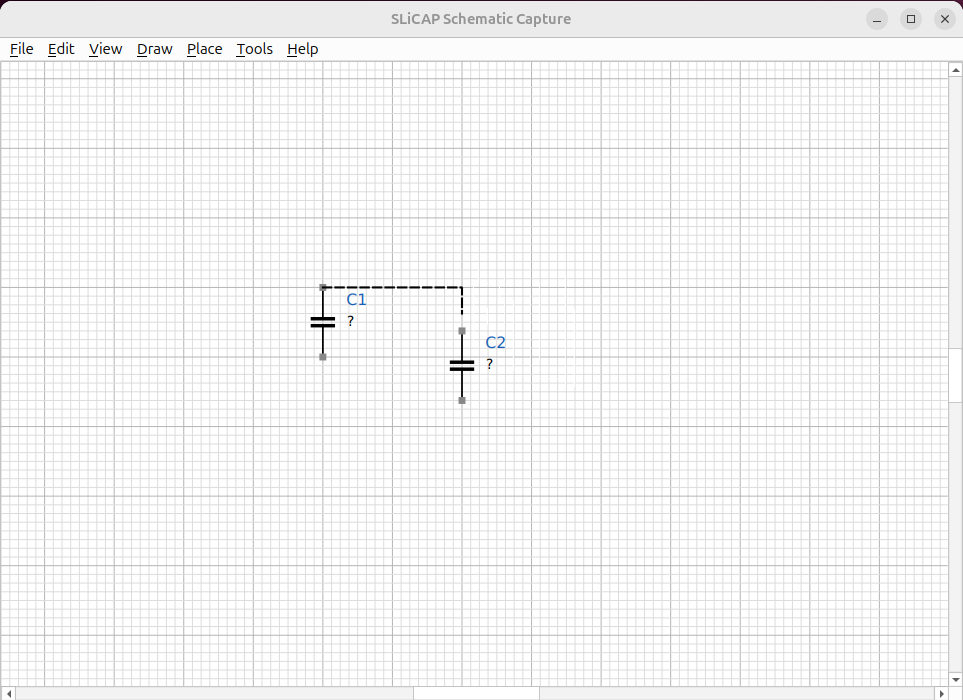
Fig. 33 Drawing an orthogonal wire from pin to pin.
Junctions
Where three or more connections meet, a junction dot is added automatically so the crossing is unambiguous. Two crossing wires that should not connect simply have no dot. You can also place a junction explicitly with (J).
Unconnected-pin markers
Every component pin with nothing attached shows a small grey square. As soon as a wire reaches the pin — or another pin sits on the same point — the marker disappears; if you later delete or move the wire away, the marker returns. This gives you a running check that the circuit is fully wired.
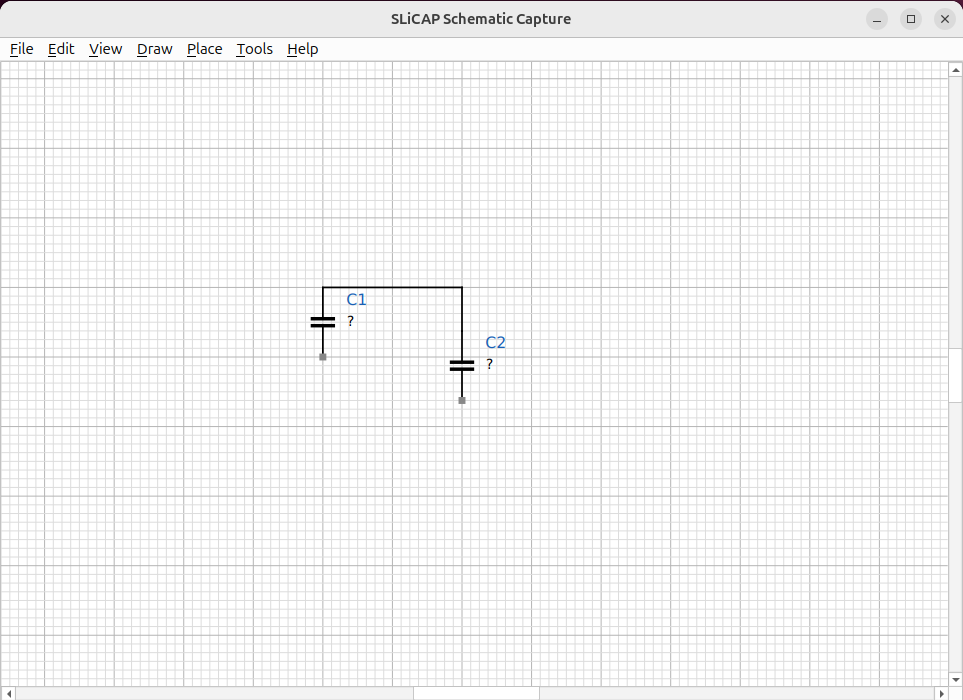
Fig. 34 Grey markers flag the pins that still need a connection.
Moving wires and parts keeps connections
A guiding rule governs every move:
Moving never breaks a connection. Only deleting a wire removes a connection.
In practice:
Move a component that is wired up, and the wires stretch to follow it.
Move a component off a pin it was touching, and a short connecting wire is created automatically so the connection is preserved.
Move a wire that is connected to a component, and it stays connected — a short bridge wire is created rather than silently detaching.
To actually disconnect something, delete the wire segment.
Editing a wire
Select a wire to show square handles at its vertices.
Drag a vertex to reshape a single corner.
Drag the body of a selected wire to move a whole segment; adjacent wires rubber-band along so the net stays intact.
Tip
After moving a wire segment it stays selected, so you can immediately drag it again — no need to reselect.
Net names
By default the editor assigns net numbers automatically. To give a net a meaningful name, attach a net label (see Net Labels, Ports & Ground).