Getting Started
Requirements
Python 3.10 or newer
PySide6 (the Qt 6 bindings)
A working SLiCAP installation (used for symbol metadata and for typesetting parameter values)
For LaTeX-typeset labels and figure export:
pdflatexanddvisvgm(a TeX distribution such as TeX Live). These are optional — without them the editor falls back to plain-text labels.
Launching the editor
From a Python session or Jupyter notebook (the usual way):
import SLiCAP as sl
sl.initProject("My Design")

sl.startSchematic()                              # empty editor; choose type from the File menu
sl.startSchematic(config='basic')                # SLiCAP basic-symbol capture mode
sl.startSchematic(file='sch/mydesign.slicap_sch')          # open an existing file
sl.startSchematic(config='basic', file='sch/mydesign.slicap_sch')
The call returns immediately; the editor runs as an independent process alongside the Python session (schematic-only: no Instruction/Log panels).
config selects the capture mode. It sets the symbol library and
restricts which schematic type may be created or opened:
|
Symbol set loaded |
Schematic type |
|---|---|---|
|
chosen per schematic |
both SLiCAP and NGspice allowed |
|
|
SLiCAP only (NGspice disabled) |
|
the complete SLiCAP library (all SVG files in the system symbols directory) |
SLiCAP only (NGspice disabled) |
|
the NGspice symbol library |
NGspice only (SLiCAP disabled) |
In a restricted mode the disallowed entry is greyed out and lists only files of the permitted type.
file is the path to a schematic to open at startup; its type is inferred from
the extension (.slicap_sch or .spice_sch). A canvas is shown only when
a file is given — otherwise the editor opens empty and you create or open a
schematic from the File menu (honouring the capture mode).
From the command line (for scripting or desktop shortcuts):
$ slicap                                                       # full editor, both types
$ slicap-schematics                                            # schematic-only editor, empty
$ slicap-schematics --config basic                             # basic SLiCAP mode, empty
$ slicap-schematics --config ngspice sch/mydesign.spice_sch    # open an NGspice file
$ python -m SLiCAP.schematic.main --schematic-only --config basic
Without a file the editor opens empty; use the File menu to create or open a
schematic in the selected mode.
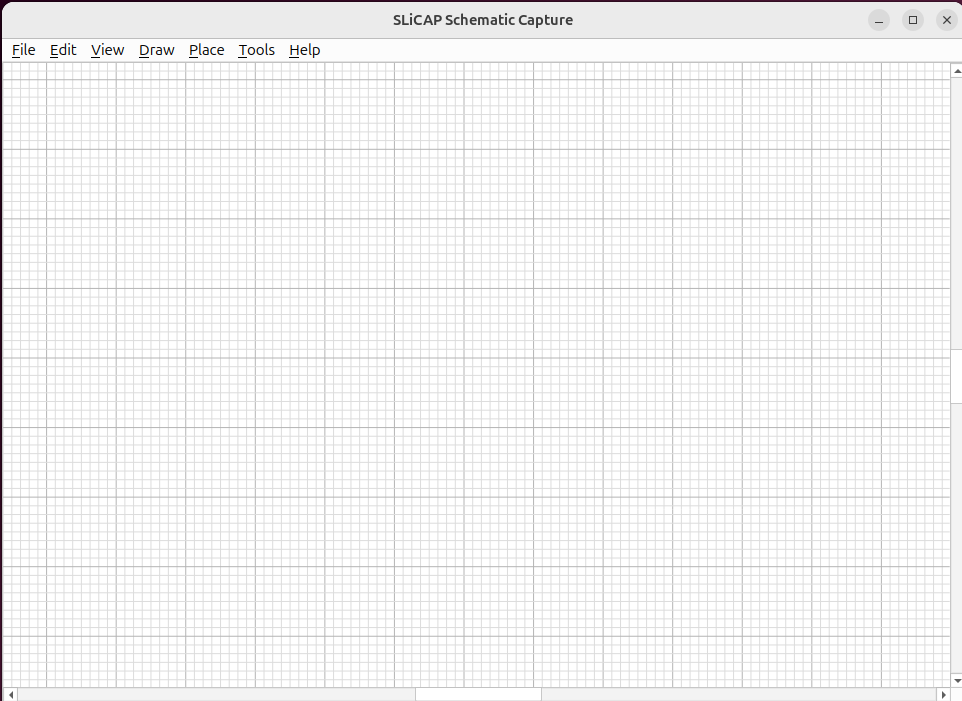
Fig. 29 The main window: menu bar, symbol palette (left) and the drawing canvas.
A first schematic in five steps
Place a symbol. Open (shortcut S), pick a resistor and click on the canvas to drop it. See Placing Symbols.
Wire it up. Choose (shortcut W) and click from one pin to the next. Unconnected pins show a small grey marker that disappears once a wire reaches them. See Wiring.
Set values. Double-click a component to open its Properties dialog and enter a value (for example
{R_s}for a symbolic resistance). See Component Properties.Mark source and detector. Use to designate the independent source and the detector.
Save and export. writes the
.slicap_schfile; produces a.cirnetlist for SLiCAP. See Netlist & Export.