The Canvas
The canvas is the drawing area. It uses a square grid; everything you place snaps to the grid so pins and wires line up exactly.
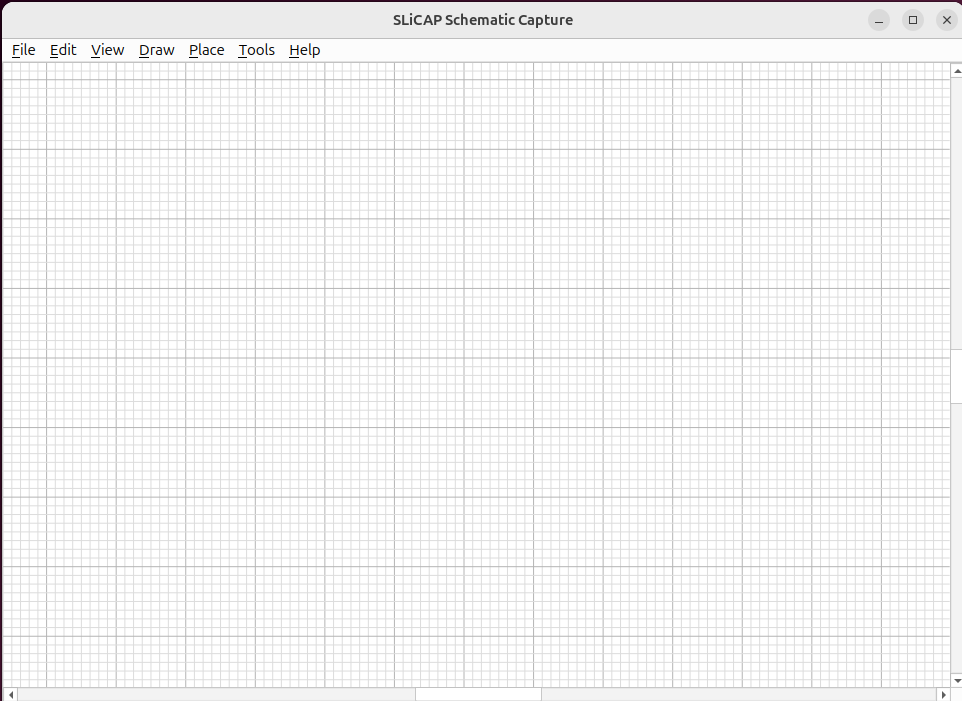
Fig. 30 The grid: fine snap cells with a heavier line every eight cells.
Grid and snapping
The snap step is the fine grid spacing — every component, pin and wire vertex lands on it.
A major grid line is drawn every eight fine cells to help you judge distances.
Grid colours can be changed under (see Preferences).
Selecting items
Click an item to select it.
Rubber-band select by dragging on empty canvas. Dragging left-to-right selects items fully enclosed; dragging right-to-left selects anything the box touches (KiCad-style).
A selected component shows a blue outline; a selected wire shows square handles at its vertices.
Moving items
Drag a selected item to move it. Components and wires keep their existing connections while you move them (see Wiring).
Movement is snapped to the grid.
Zoom and pan
(F) frames the whole drawing.
+ / - zoom in and out; Ctrl+0 resets the zoom.
Use the scroll bars or the mouse wheel to pan.
Undo and redo
Every edit can be reversed with (Ctrl+Z) and re-applied with (Ctrl+Y).