Placing Symbols
Symbols are the circuit elements you place on the canvas. Each one is self-describing: it carries its own SLiCAP metadata (device prefix, node names and order, model name, parameter names, a description and a documentation link), so the netlister and the Properties dialog need nothing else.
Opening the place dialog
Choose (shortcut S).
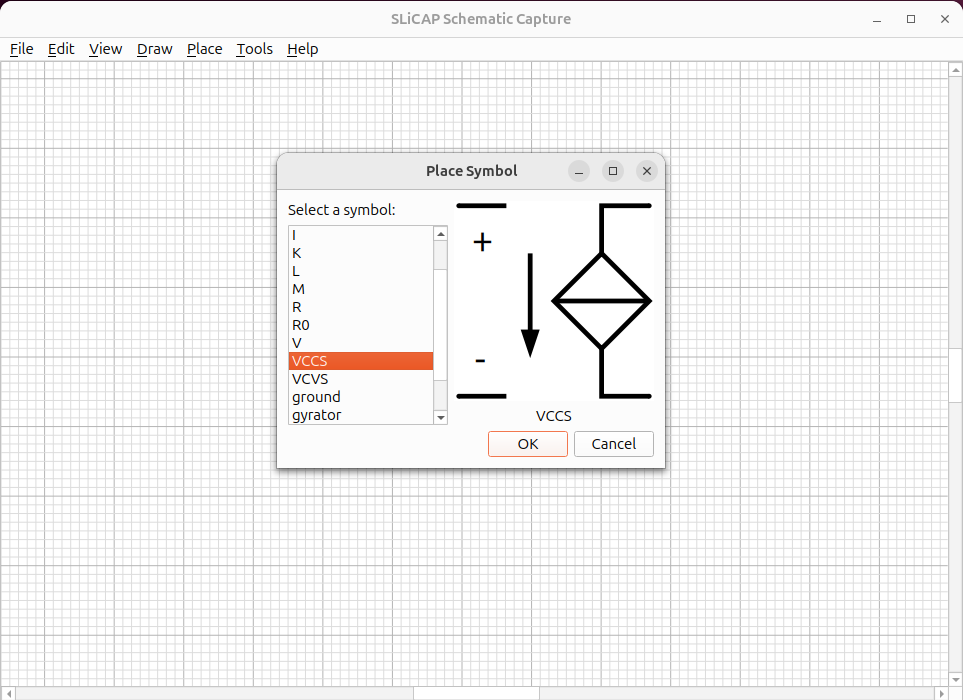
Fig. 27 The Place Symbol dialog: pick a symbol from the list; its description is shown below the preview.
Select a symbol from the list — a preview and its description appear.
Click OK (or double-click the symbol).
Move the mouse onto the canvas and click to drop the symbol.
Keep clicking to place more copies of the same symbol; press Esc to stop.
Basic SLiCAP symbols
Symbol |
Prefix |
Description |
|---|---|---|
Resistor |
|
Resistor (nonzero resistance); variant |
Capacitor |
|
Capacitor. |
Inductor |
|
Inductor. |
Voltage source |
|
Independent voltage source. |
Current source |
|
Independent current source. |
VCVS / VCCS |
|
Voltage-controlled voltage / current source. |
CCVS / CCCS |
|
Current-controlled voltage / current source. |
Nullor |
|
The SLiCAP nullor (ideal amplifier element). |
Ideal transformer |
|
Ideal transformer. |
Gyrator |
|
Gyrator. |
Coupling factor |
|
Mutual-inductance coupling factor. |
Ground |
|
Reference node (net |
Port |
|
Named hierarchical / global connection. |
Extended SLiCAP Symbols
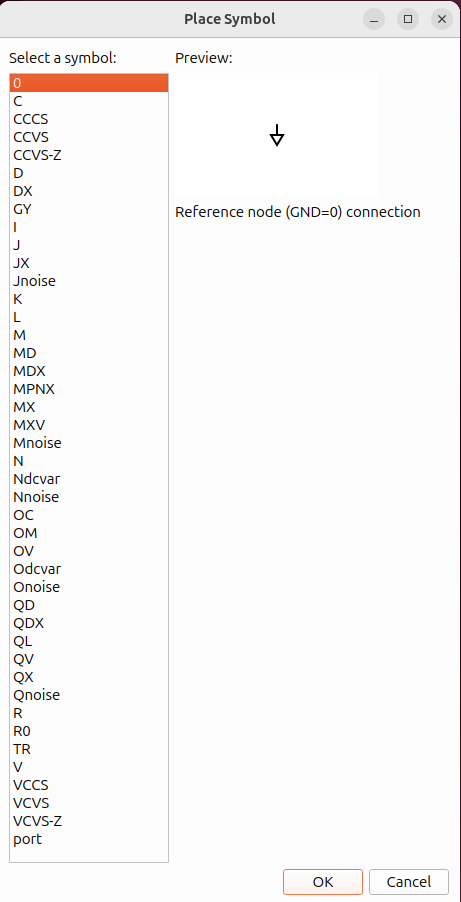
The figure below shows the “Place” drop-down menu with all SLiCAP symbols.
NGspice Symbols
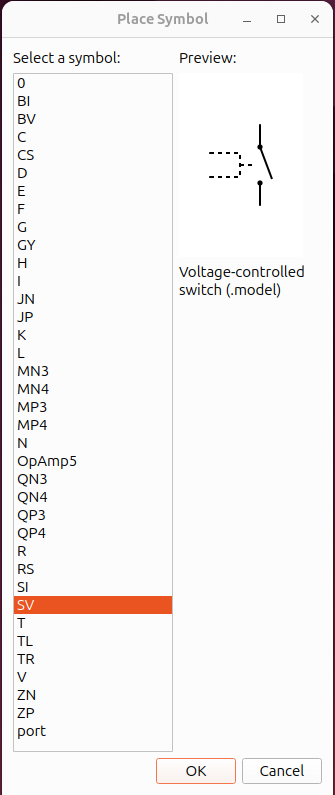
The figure below shows the “Place” drop-down menu with all NGspice symbols.
Orienting a symbol
Open a placed component’s Properties dialog (double-click it) to set its rotation (0/90/180/270°) and horizontal or vertical mirroring. See Component Properties.
Use (shortcut r) for rotate and (shortcut m) for mirror horizontally.
Parameter defaults
When a symbol is placed, its value parameter and any
reference designator fields are pre-filled with ? as a reminder that they
must be set before the netlist is valid. All other parameters (initial
conditions, statistical attributes, etc.) start empty and are omitted from the
netlist until you fill them in.
Double-click the component to open the Properties dialog and replace the
? placeholders with real values.