Projects
Create a new project
File - New project …
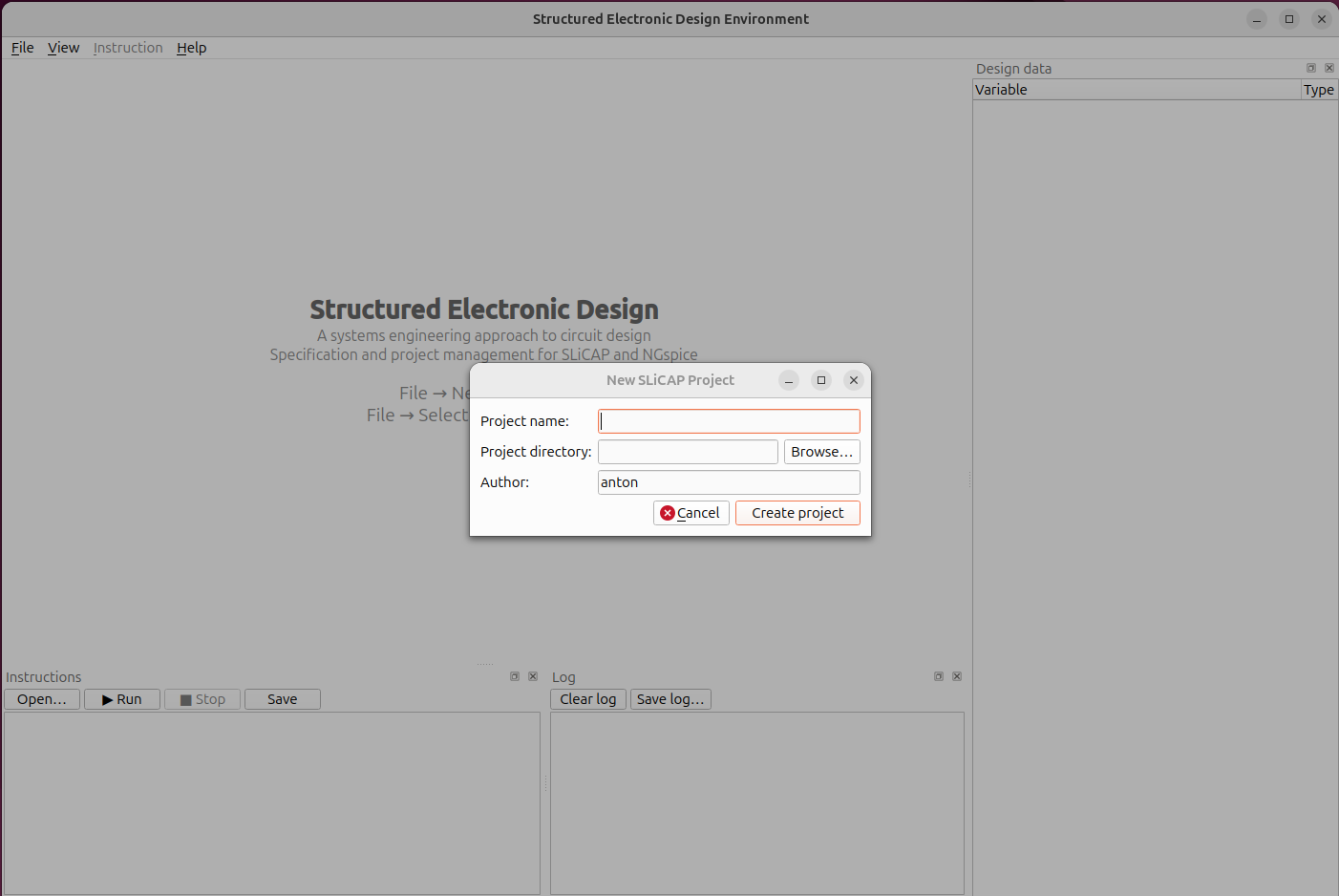
Select a project folder and name. The application initializes a SLiCAP project and creates the folder structure. This is displayed in the “Project” panel.
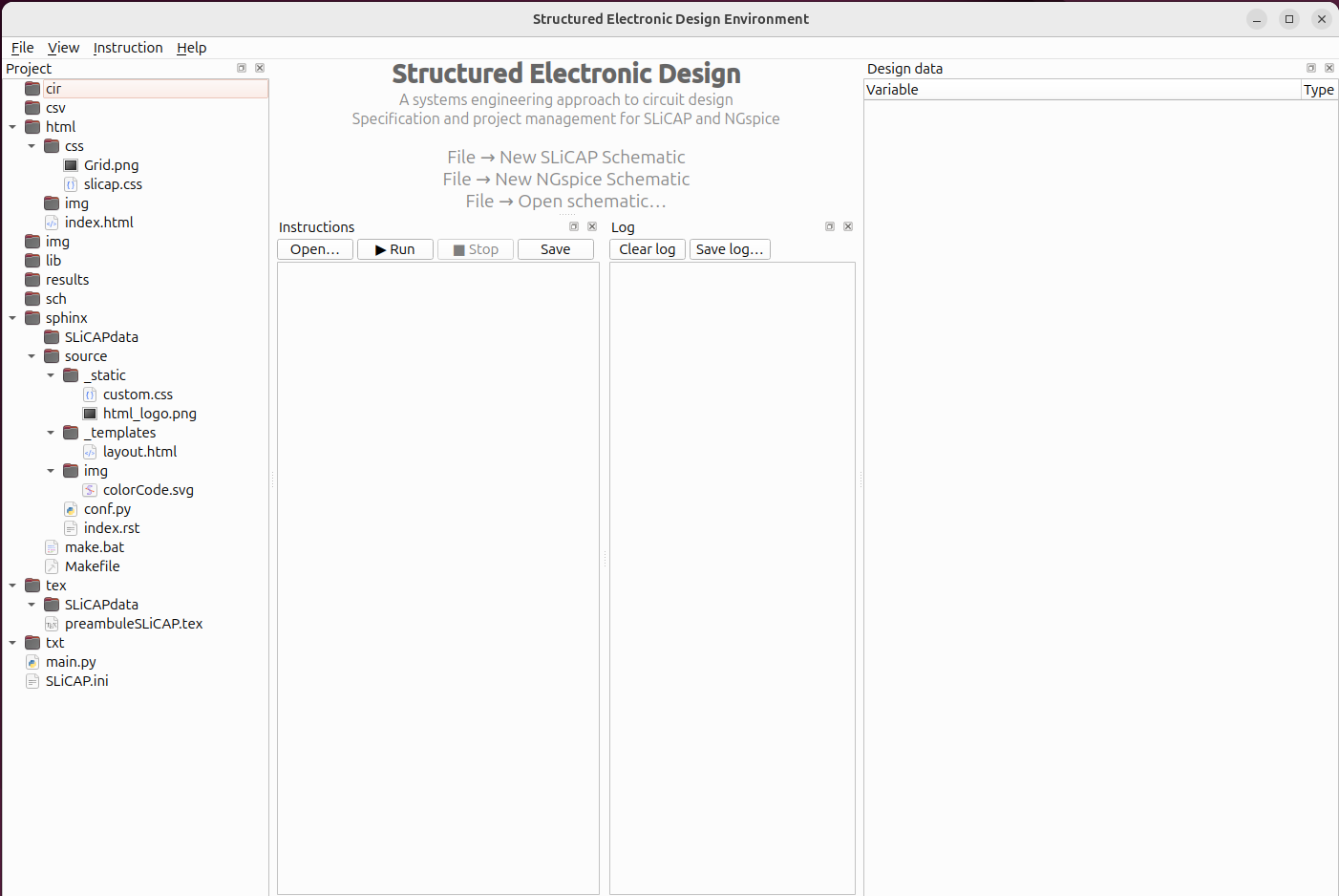
The created folders are:
+ project folder          # Project root directory for python scripts and jupyter notebooks
+-- cir                   # Directory for netlists ('.cir' files)
+-- csv                   # Directory for csv files generated or imported by SLiCAP
+-+ html                  # Directory of standard SLiCAP html project report
| | - index.html          # Main html report page
| +-- css                 # Standard SLiCAP html report CSS
| |   - Grid.png          # Background for standard SLiCAP html report
| |   - SLiCAP.css        # CSS file for standard SLiCAP html report
| +-- img                 # Standard SLiCAP html report images
+-- img                   # Image files generated by SLiCAP
+-- lib                   # Default directory for project-specific libraries
+-- results               # Inventory (json format) of simulation result variables displayed in the "Design data" panel
+-- sch                   # SLiCAP and NGspice schematics
+-+ sphinx                # Root directory for Sphinx project report
| | - make.bat            # MSWindows batch file for compiling Sphinx project report
| | - Makefile            # Linux (MacOS) make file for compiling Sphinx project report
| +-- SLiCAPdata          # Directory for storing SLiCAP generated rst snippets
| +-+ source              # Directory for storing rst project report files
|   | - conf.py           # Sphinx configuration file based on ``Sphinx book style``
|   | - index.rst         # Root rst project report file
|   +-- img               # Directory for storing rst project report images
|   |   - colorCode.svg   # svg image with color-coded resistors
|   +-- _static           # Sphinx directory for style information
|   |   - custom.css      # Sphinx custom css files
|   |   - html_logo.png   # Sphinx report html logo
|   +-- _templates        # Sphinx user templates
|       - layout.html     # Example of a user template
+-- tex                   # Root directory for LaTeX project report
|   - preambuleSLiCAP.tex # Preambule with default SLiCAP LaTeX formatting dfinitions
|   +-- SLiCAPdata        # Directory for storing SLiCAP generated LaTeX snippets
+-- txt                   # Directory for text files to be included in standard html output
- SLiCAP.ini              # SLiCAP settings for the project
- main.py                 # File that executes the instructions
Schematic scale
The [gui] section of SLiCAP.ini holds sch_scale, the number of
scene units per millimetre. It fixes the physical size of an exported
schematic (SVG and PDF) and of everything drawn in it: symbols have a fixed
size in scene units (a resistor body is 10 x 20 units, the grid step is 5).
The default is 3.5433 (90 / 25.4): one scene unit is one pixel of a 90 dpi
Inkscape drawing, a resistor body prints 2.8 x 5.6 mm, and a border of 195
units is 55 mm wide. The Border dialog takes the border size in mm or inch
and converts with this value. Use the same value in every project of one
document, so that symbols have the same size in all its figures. Projects
created before September 2026 carry sch_scale = 2.0 in their
SLiCAP.ini and keep their export size until the value is changed.
Self-contained projects
SLiCAP projects are self-contained: everything a schematic or netlist references lives inside the project tree, addressed by relative paths — never by an absolute path into another project or machine. A project therefore survives being moved, renamed, archived, or handed to someone else, as-is.
The tools enforce this rule rather than assume it:
Netlists reference libraries project-relatively (
.lib lib/<name>.slicap_lib,.include "lib/<name>.spice_lib").Symbols and styles are frozen into the schematic’s sidecar files, so a drawing renders identically on another machine (see below).
Placing a subcircuit from another project copies its complete package (library, block symbol and schematic) into this project’s
lib/. The import is a snapshot, not a live link: descending into the block and editing it afterwards changes only the local copy — the originating project is never touched.
Open an existing project
Opening an existing project reads the SLiCAP.ini file in the selected project folder and creates missing folders and files (see above).
Save and close the project
Saving a project saves the open schematics and instructions, closing it closes the project panel brings the GUI to the opening state.