Annotations
Annotations are non-electrical additions that make a schematic into a finished figure. They are ignored by the netlister but appear in the SVG/PDF export.
Free text
(shortcut T) adds a line of text. Use it for notes, titles or callouts.
LaTeX fragments
adds a block of typeset LaTeX — equations,
aligned derivations, anything a standalone LaTeX document can produce.
(Requires pdflatex and dvisvgm.)
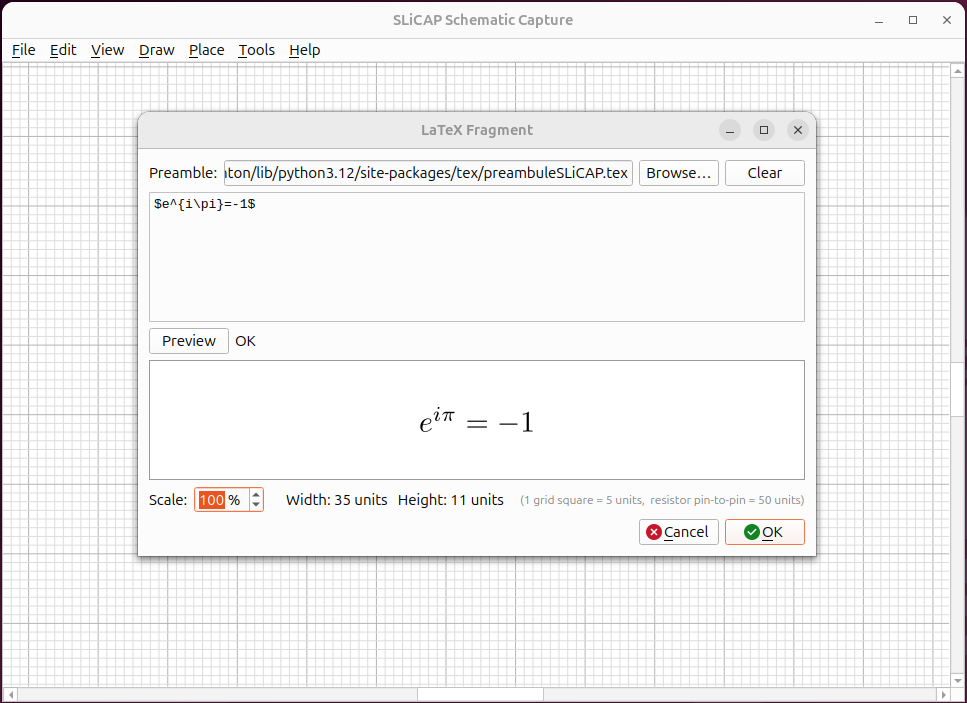
Fig. 32 A typeset equation placed next to the circuit it describes.
Hyperlinks
adds clickable link text (for example to a course or datasheet). In the editor, right-click the link to open or edit it.
Images
embeds a raster or vector image — a logo, a photo of a measurement, a plot.
Drawing primitives
The menu also provides simple shapes — Line, Rectangle, Ellipse and Polygon — for framing, grouping or highlighting parts of the diagram. A line and a polygon take a click per vertex and end with a double click, Enter or Escape (a polygon needs three vertices); a rectangle and an ellipse take two opposite corners, so a square or a circle is the special case of equal sides. Double-click a shape for its properties: stroke colour, width and style (none shows a filled shape without contour), fill, a rotation angle about the shape’s centre, and for a line the two line ends. An arrow head is a filled triangle without contour with its own width and length (the defaults 4 and 6 are those of the current-source arrow of the symbol library); a wide arrow with a shaft that has width is a polygon.
Borders and document properties
(B) adds a drawing border/frame.
sets the title, author and page size, which are used when exporting and printing.
Renaming components
renumbers reference designators in bulk — handy after a lot of editing.
Placement and grid
Free text, LaTeX fragments, hyperlinks and images are annotations: they are placed and dragged freely, at any position, so that a caption such as a polarity sign or a voltage name can be aligned with a symbol. Symbols, wires and junctions always snap to the grid, because the connectivity is computed from their positions. Everything else (the border, drawn shapes, and the parameter, analysis, model, library and command blocks) snaps to the grid, or to a fine grid of one fifth of it while Shift is held while dragging, so that a short line keeps its alignment. A shape snaps the vertex nearest to the point where it was grabbed, so a polyline whose first point is off the grid can still be placed with any vertex on a grid point; a selected shape shows a handle at every vertex, and dragging a handle reshapes it.